
Selection & moving objects
How to look around your scene, pick an object, and move, turn or resize it.
Look around the scene
Full guide: Navigating the 3D view.
The 3D view is like looking through a camera. These gestures move that camera. They do not change your scene.
| Gesture | What happens |
|---|---|
| Drag one finger on empty space | The camera circles around the scene (orbit). |
| Drag two fingers | The camera slides sideways or up and down (pan). |
| Pinch two fingers | The camera moves closer or further away (zoom). |
| Double-tap the pie key | The selected object is brought into the middle of the view. |
Select an object in the Scene Hierarchy, then double-tap the green pie key. The camera jumps back to that object.
The small axis widget
Each 3D view has a small widget with coloured axes. It shows which way the camera faces.
- Tap the end of an axis to look straight along it, for example from the front or from above.
- Tap its centre to switch between a natural view with depth (perspective) and a flat view without depth.
"camera rotation locked"
In some views, such as Top or Front, turning the camera can be locked so the view stays straight. If you drag and see camera rotation locked, tap unlock to turn freely. Pan and zoom always work.
Select an object
Objects in Naomi show small handles. A model has a ring at its base. A character also has handles on its body parts.
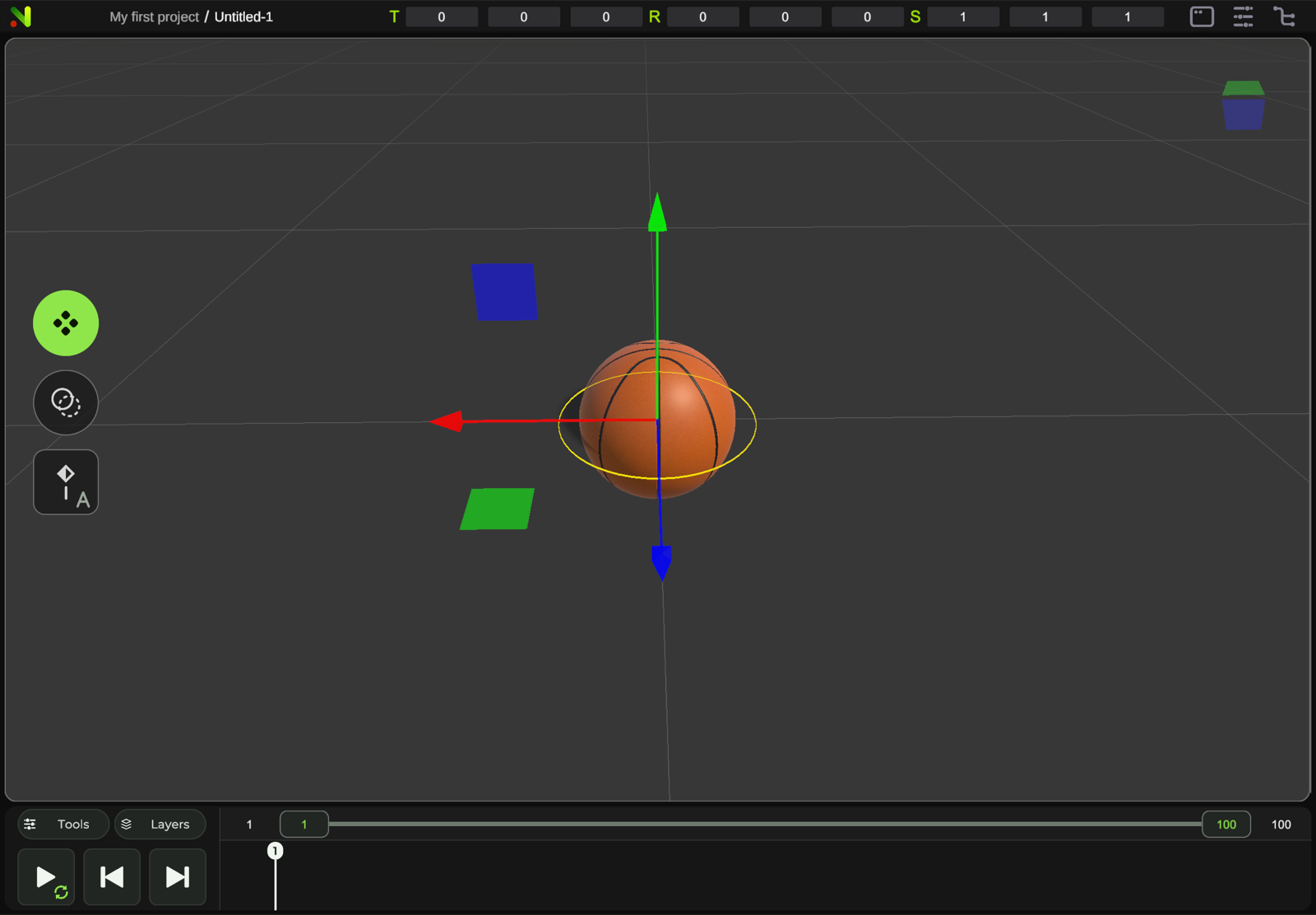
- Select: tap a handle. To select a whole model, tap the ring around its feet.
- Deselect: tap empty space.
- Select from the list: open the Scene Hierarchy and tap a row.
When something is selected, coloured arrows appear on it. They are called the gizmo, and you use them to move the object.
The handles may be hidden in that view. Hold the pie key, touch the view and choose show effectors.
Select several objects
- Hold the selection key (the round softkey with the selection icon).
- While holding it, tap each object you want. Tapping a selected object again removes it.
- Or drag across the view to draw a box. Everything inside is selected.
Select one part of a model
Normally a tap selects handles, not the surface of a model. To pick a single part, for example one wheel to change its colour, turn on mesh picking.
- Make sure nothing is selected.
- Hold the pie key, touch the view and choose select meshes.
- Tap a part of the model. It lights up green, and the Inspector shows its settings.
To turn it off again, open the same pie, slide into object and choose ignore meshes. Mesh picking is off each time you start Naomi. Full guide: Mesh selection.
Move, turn and resize
The gizmo has three modes.
| Mode | In the pie menu | How to use it |
|---|---|---|
| Move | translate | Drag an arrow to move along that line. Red moves sideways, green moves up and down. Drag a small coloured square to slide in two directions at once. The green square slides along the floor. |
| Turn | rotate | Drag a ring to turn the object that way. |
| Resize | scale | Drag the centre box to make the object bigger or smaller. Drag a coloured box to stretch it in one direction only. |
Switch the mode
- Select the object.
- Hold the green pie key and touch an empty part of the scene.
- Slide to translate, rotate or scale and let go.
World and local
The same pie has world or local. It decides which way the arrows point.
- World: the arrows line up with the scene. "Up" is always straight up, however the object is turned.
- Local: the arrows turn with the object. "Forward" is the way the object faces. This is handy for moving a car along the direction it points.
The option names the mode you will switch to.
Type exact numbers
When something is selected, the header shows its position, rotation and scale as X, Y and Z numbers.
- Tap a number to type a new value.
- Drag left or right on a number to change it smoothly.
- Reset: hold the pie key and tap a number. Choose to reset that one value, the whole row, or reset all.
Position is in centimetres, rotation in degrees. A scale of 1 is the original size, 2 is twice as big.
The Node card in the Inspector shows the same numbers. Its ⋮ menu can copy the position, rotation or scale of one object and paste it onto another. See Scene Hierarchy & Inspector.
Duplicate and delete
Duplicate
- Select the object.
- Hold the pie key, touch empty space and choose selection..., then duplicate.
- The copy sits exactly on top of the original and is selected. Drag it away to see both.
The copy keeps the original's animation and settings.
Delete
- Select the object.
- Hold the pie key, touch empty space and choose selection..., then delete (shown in red).
Deleting an object from a scene is permanent, and it also clears the undo history. Save before you delete if you are unsure.
Undo and redo
Full guide: Undo & redo.
| Action | Gesture | Pie menu |
|---|---|---|
| Undo (take back the last step) | Tap once with two fingers | undo |
| Redo (bring it back) | Tap once with three fingers | redo |
Moving objects, typed numbers, selections, duplicates and keyframe changes can all be undone.
Look through your own camera
The camera you look around with is only for working. For the final shot you can place a real camera object in the scene and animate it.
- Open the Assets library and add Camera Node from the Default section.
- Split the view (see User Interface) and choose Camera Node.
- Tap Tap and select camera node and pick your camera.
Now one pane shows what the camera sees, while you move the camera in the other. Full guide: Cameras.