
Realtime animation
Record movement live: the timeline plays, you drag an object with your finger, and Naomi writes the keyframes for you as you go.
What it is and when to use it
Normally you animate by setting keyframes one at a time: you stop at a frame, pose the object, and save that pose as a key. Realtime animation works the other way round. The timeline runs like a tape recorder, and whatever you drag while it runs is saved along the way. In Naomi this tool is called Record.
Use it when the movement is easier to perform than to plan. For example: a fly buzzing around a lamp. Setting thirty keys by hand for that wobbly path is slow. Dragging the fly around the lamp for two seconds while Naomi records gives you the same thing in one go, with your own timing in it.
Record is free. It works on any object and on the handles of a character. If keyframes are new to you, read Keyframes & Timeline first.
Record a take
A take is one recording, from the moment you start to the moment you stop.
- Select the object you want to move. For a character, select the handle you want to move, for example a hand.
- Choose how you will move it. Hold the pie key, touch the 3D view and pick translate (move), rotate (turn) or scale (resize).
- Move the timeline to the frame where the recording should begin.
- Put your finger near the gizmo (the coloured arrows on the object) so you are ready.
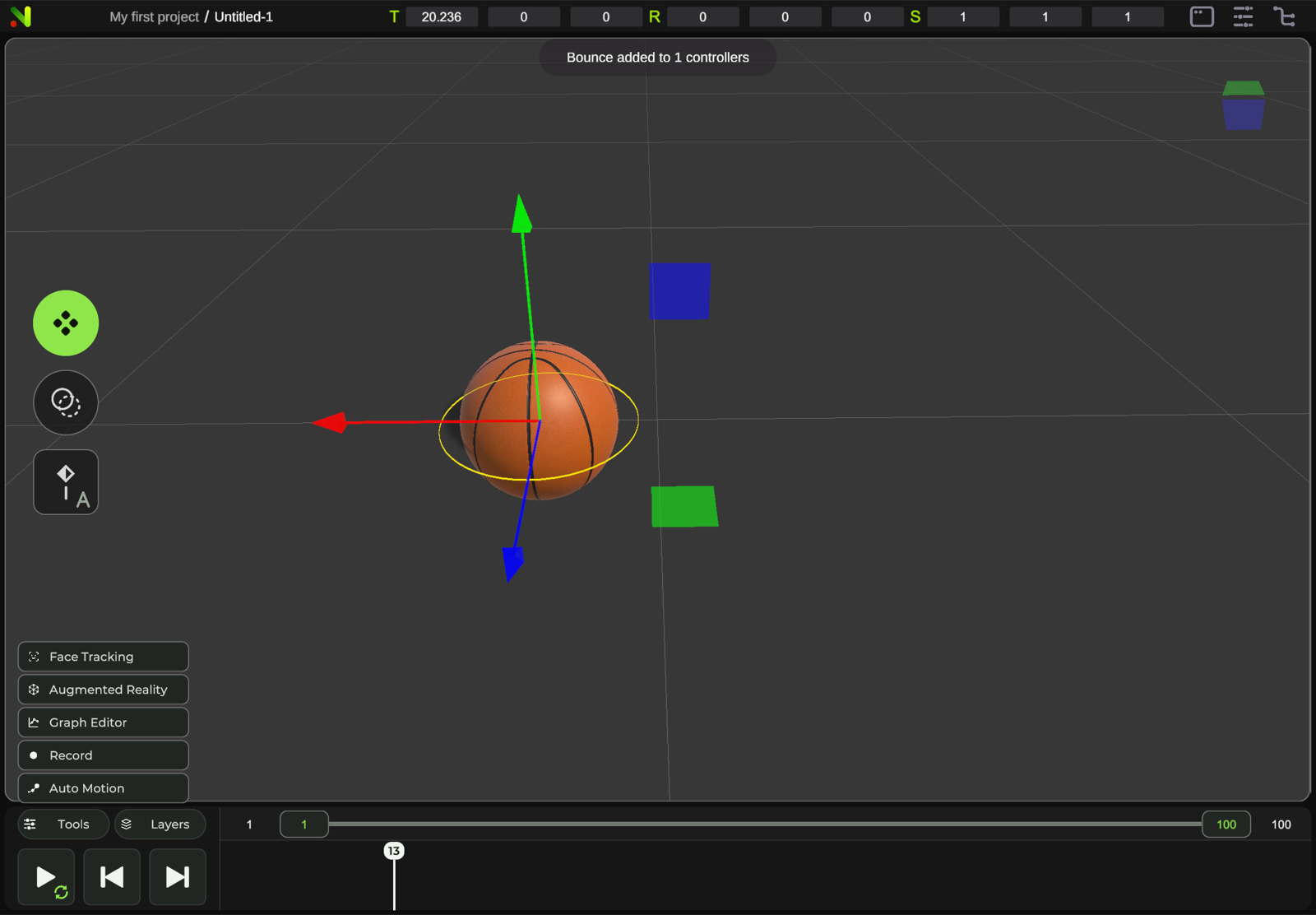
- On the timeline, tap Tools and choose Record. The timeline starts playing at once, the Play key turns red and a red signal pulses on the timeline.
- Drag the gizmo. Everything you do while your finger is down is recorded.
- Tap the red Play key to stop. The recording also stops by itself when the timeline reaches the end of the active range.
Press Play to watch the take. The new keys show as marks on the timeline, like keys you made by hand.
During normal playback the gizmo is hidden and objects cannot be moved. While recording, the gizmo stays on screen so you can drag it.
Start and stop
There are two ways to start, and several ways to stop. They all do the same thing.
| Where | Start | Stop |
|---|---|---|
| Timeline, Tools menu | Record | Stop recording |
| Pie menu, with something selected: selection... | record | stop recording |
| Play key on the timeline | Tap it while it is red. | |
| End of the active range | Recording stops by itself. It never loops, even when repeat is on. | |
| Saving the scene | Saving ends the recording first. |
The pie item is only there when something is selected. With nothing selected, use the Tools menu.
What gets recorded
| Question | Answer |
|---|---|
| Which objects? | Every object or handle that is selected while you drag. Select several to record them together. |
| Which values? | Position, rotation and scale. Each recorded frame gets a key on all three, whichever one you were dragging. |
| How many keys? | One on every frame that passes while your finger is down on the gizmo. At the default 24 frames per second, a one-second drag gives about 24 keys. |
| What about the pauses? | While your finger is up, nothing is written. The timeline keeps playing and the object follows whatever animation it already has. |
| What shape do the keys have? | The same as keys you make by hand: flat. Because there is a key on every frame, the result follows your finger closely. |
| Which layer? | The layer shown in the layer list, like any other key. See Animation layers. |
| Settings in the Inspector? | Not recorded. Brightness, colours and other settings are animated with their own keyframe buttons. |
You do not need to make a first key by hand, and Auto does not have to be on. Record writes keys by itself.
Redo or improve a take
- Record over it. Move the timeline back to the start and record again. Every frame you drag through is written again with the new movement. Frames where your finger was up keep their old keys, so drag for the whole stretch if you want a clean replacement.
- Delete the keys. Hold the selection key, drag a box over that stretch of the keyframe strip, and tap the delete button beside the box. Then record again.
- Undo. Undo works, but a take is taken back a little at a time, not all in one step. For a long take, deleting the keys is quicker.
- Build it up in passes. Record the path first with translate. Go back to the start, switch to rotate, and record the turning over the same stretch. Keep your finger down for the whole pass.
- Smooth it. A hand-drawn movement is a little shaky. Open the Graph Editor to see the curves and tidy them, or delete keys you do not need.
Tips for a good take
- Make the active range long enough before you start. Recording stops at its end.
- Look at the scene from a helpful angle first. Dragging sideways is easiest when the camera looks straight at the movement.
- Recording starts the moment you choose Record. If you need a moment to get ready, start a few frames early and delete the extra keys afterwards.
- For a character, record one handle at a time: first the hips, then a hand, then the head.
Limits and troubleshooting
| What you see | Why, and what to do |
|---|---|
| The object moves while I drag, but no keys appear. | The timeline was only playing, not recording. Check that the Play key is red. In normal playback Naomi does not add keys and says Can't add keyframes during playback. |
| There is no record in the pie menu. | Nothing is selected, so the pie shows the options for the view. Select the object, or use Tools on the timeline. |
| Recording stopped too soon. | The timeline reached the end of the active range. Make the range longer and record again. |
| This object is not in the layer - add it with Add Objects | You are on an animation layer that does not include this object. Add it to the layer, or switch the layer list back to Base. |
| Recording stopped when I changed a Parent Constraint. | Changing a constraint's sources or axes ends the recording on purpose. Set up the constraint first, then record. |
| The movement is jittery. | That is your hand. Record again more slowly, or smooth the curves in the Graph Editor. |
Record does not make a video file. It records movement into keyframes. To make a video of your animation, see Export & share.
What next
- Keyframes & TimelineMove, copy and delete the keys you recorded.
- Graph EditorSee a recorded movement as curves and smooth it.
- Animation layersRecord a change on top of an animation without touching it.
- Posing charactersThe handles you can record on a character.
- Face trackingRecord your own face onto a character.