
Constraints
Make one object follow another, and switch the following on and off during a shot, so a character can pick something up and put it down.
What a constraint is
A constraint is a rule that ties one object to another. Naomi has one you can add yourself: the Parent Constraint. It works like glue with a dial. The glued object moves and turns with the object it is stuck to, and the dial, called Weight, says how strong the glue is at each moment.
Two words are used on this page:
- The follower is the object that carries the constraint, for example a cup.
- A source is what it follows, for example a character's hand.
Typical uses:
- A character picks up a cup, carries it and puts it down.
- A character rides in a car or on a horse.
- A camera travels with a vehicle.
- A stretcher is carried between two characters.
Without a constraint you would have to key the cup on every frame to keep it in the moving hand. With one, you animate only the hand. Parent Constraint is free.
Make one object follow another
- Move the timeline to a frame where the two objects are placed as they should stay. For the cup, that is the frame where it sits in the hand.
- Select the follower (the cup).
- Open the Inspector: hold the pie key, touch the 3D view, choose selection... and then inspect.
- Tap + and choose Parent constraint. A Parent Constraint card appears with one empty slot under Sources.
- Put your finger on the empty slot and drag to the source in the 3D view (the hand's handle). A line follows your finger and the name of the object under it is shown. Let go on the source. Its name now stands in the slot.
- Move the source. The follower moves with it.
The follower keeps the distance and angle it had to the source at the moment you connected them. It does not jump onto the source. That is why step 1 matters: place the cup in the hand first, then connect.
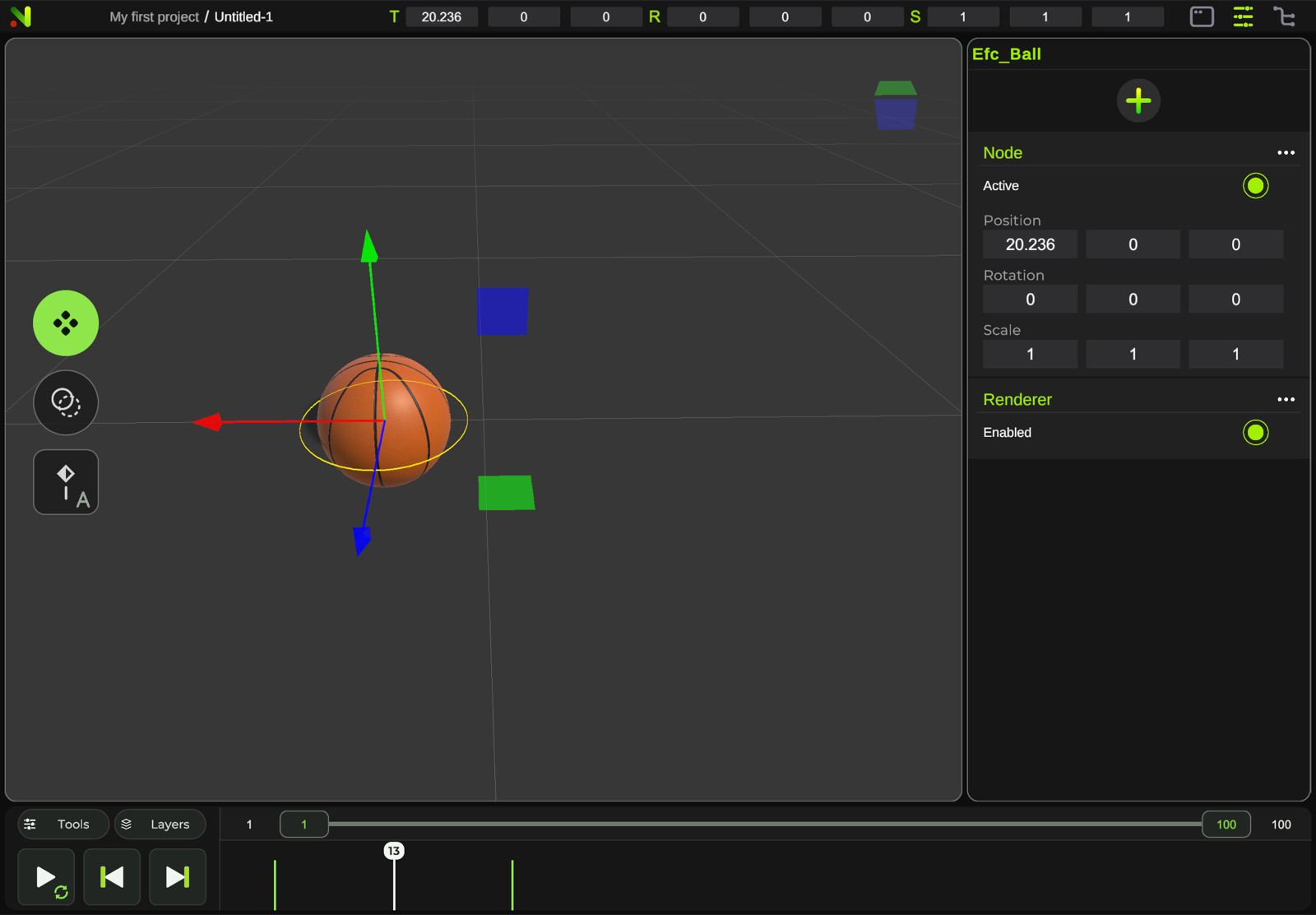
Settings on the card
| Setting | What it does |
|---|---|
| Weight | How strongly the follower is held, from 0 (free) to 1 (fully attached). This is the value you animate to pick up and let go. |
| Sources | The objects being followed. Each slot has the source's name and its own weight from 0 to 1. |
| Add source button | Adds another empty slot. With two or more sources the follower sits between them, pulled towards the ones with more weight. |
| Position Axes | Three switches, X, Y and Z. Switch one off and the follower stops following in that direction. X is sideways, Y is up and down, Z is forward and back. |
| Rotation Axes | The same three switches for turning. Switch all three off and the follower travels with the source but never turns with it. |
| Align | Shown once a source is set. Moves the follower exactly onto the source (or to the middle point between several sources). |
To change a source, drag from its slot to a different object. To remove a source, drag from its slot and let go over empty space.
To remove the whole constraint, tap ⋮ on the card and choose Delete.
Pick up and let go: animate the weight
Changing Weight over time is what makes a pick-up. Example: a cup stands on a table, a hand takes it at frame 30 and puts it back at frame 80.
- Animate the hand first: reaching the cup at frame 30, carrying it, returning at frame 80.
- Go to frame 30, where the hand holds the cup. Add the Parent Constraint to the cup and connect the hand as its source, as described above.
- Go to frame 1. Set Weight to 0 and tap the small keyframe button beside the value. This makes the first key: the cup is free.
- Go to frame 30 and set Weight to 1. Naomi adds the key by itself. The cup is now held.
- Go to frame 81 and set Weight to 0. The cup is let go.
- Make the changes sudden. On the small timeline in the Weight row, hold the selection key and drag a box over the three keys. Hold the pie key, touch inside the box and choose constant.
Normally a value slides gradually from one key to the next, so the cup would drift towards the hand during all the frames before the grab. With constant the weight holds its value and then jumps at the next key, which is what a grab looks like.
At weight 0 the follower returns to its own position and its own keys. If the cup should stay where the hand put it down, give the cup a key of its own at that place, or turn the followed movement into keys with Bake.
Several sources
A follower can have more than one source. It then sits between them, and each source's own weight says how hard that source pulls. Two sources at weight 1 hold the follower half way between them. Example: a stretcher carried between two characters, with one source on each character's hand.
Only the main Weight of the card can be animated. The weights of the single sources stay the same for the whole shot, so they set a fixed balance and cannot time a handover from one source to another.
Follow in some directions only
- A hat that stays upright: leave Position Axes on and switch all Rotation Axes off. The hat travels with the head but does not tilt.
- A shadow blob under a jumping character: switch off the Y position axis. The blob follows across the floor but does not rise.
Edit the followed movement by hand
While an object follows a source it has no keys of its own for that movement, so there is nothing to adjust on its timeline. Bake writes the movement down as ordinary keys and then switches the constraint off. Select the follower, hold the pie key, choose selection... and then Bake. See Baking keyframes.
Aim Constraint
An Aim Constraint makes an object keep pointing at another, like eyes following a ball. It cannot be added in the current version of Naomi: the + menu does not offer it.
Scenes that already contain an Aim Constraint keep working. The object still aims, the scene saves and loads as before, and the Aim Constraint card still shows in the Inspector with its Weight, Sources, Rotation Axes, Horizontal Limit and Vertical Limit. The two limits work with one source only. With more, Naomi says Range limits work with one source only.
Limits and troubleshooting
| What you see | Why, and what to do |
|---|---|
| Parent constraint is not in the + menu. | The selected thing is a single mesh part, not an object or handle. Select the object by its handle. The menu is also empty while you are rigging or generating a model. |
| already added | An object can carry one Parent Constraint. Add more sources to the one it has. |
| cannot be constrained to itself | You dragged the slot onto the follower. Drag to a different object. |
| would create a parent constraint cycle | The source already follows this object, directly or through others. Two objects cannot follow each other. |
| The follower sits beside the source, not on it. | It keeps the offset it had when you connected them. Tap Align to put it on the source, or set the weight to 0, place it and connect again. |
| Playback or recording stopped when I changed the card. | Changing sources or axes stops playback and recording on purpose, so the connection is measured from a still pose. |
| The follower floats between two places. | The weight is between 0 and 1, or the follower also has keys of its own. Use 0 or 1 for a clean hold, and avoid keying the follower's own position while it is held. |
| I deleted the source object. | That source is taken off the card and the follower no longer follows it. |
A constraint card cannot be copied to another object with Copy and Paste. Set it up on each object.