
Posing characters
How to bend a character into a pose with its handles: hips, spine, arms, legs and fingers, the two ways an arm can work, and how to copy a pose from one handle to another.
Handles: how you move a character
A character that can be posed has a skeleton inside, called a rig. You never touch the bones themselves. You move small shapes floating on the body, called handles, and the bones follow them. Naomi's menus call a handle an effector.
A pose is the position of all handles at one moment. An animation is a row of poses saved as keyframes. Example: for a wave, you pose the arm up at frame 1, tilted left at frame 10 and tilted right at frame 20.
This page is about human characters: the ones that come with Naomi and the ones you make with Humanoid Rigging. Characters with a skeleton you built yourself work the same way, with the handles you gave them. See Custom Rigging.
Pose a handle
- Tap a handle to select it. The gizmo (coloured arrows) appears on it.
- Hold the pie key, touch the 3D view and pick translate to move the handle, or rotate to turn it.
- Drag the gizmo.
- Tap the keyframe key to save the pose of the selected handles at this frame.
In the same pie, local and world switch which way the gizmo's arrows point: along the handle's own directions, or along the directions of the scene. For turning a forearm or a finger, local is usually easier.
The keyframe key saves the handles that are selected, not the whole character. After posing several handles, hold the selection key and drag a box around the character to select them all, then tap the keyframe key. Once a handle has its first key, moving it at another frame adds the next key by itself while Auto is on.
The handles of a human character
| Handle | What it does | Usually |
|---|---|---|
| Ring at the feet | Moves, turns and resizes the whole character. | Move |
| Hips | Moves the body. The feet stay planted, so lowering the hips bends the knees. | Move and turn |
| Spine (several, from the waist up) | Bends and twists the torso. | Turn |
| Neck and head | Nods, tilts and turns the head. | Turn |
| Shoulders | Shrug, or reach forward. | Turn |
| Feet | Place a foot. The knee and thigh follow. | Move and turn |
| Knees | Point the knee: the leg bends towards this handle. | Move |
| Toes | Bend the front of the foot. | Turn |
| Arms | Two sets of handles. See the next section. | |
| Fingers | One small handle per finger joint. Curl them to make a fist or a pointing hand. | Turn |
Start a pose from the middle of the body and work outwards: hips first, then spine, then head, arms and legs, and fingers last. Moving the hips later would shift everything you posed before.
IK and FK: two ways to pose a limb
- IK (inverse kinematics): you move the end of the limb, and the joints in between work out their own angles. Drag a foot, and the knee and thigh follow. Good for anything that touches something: feet on the floor, a hand on a table.
- FK (forward kinematics): you turn each joint yourself, from the top down. Turn the upper arm, then the forearm, then the hand. Good for free swinging movement such as a wave or walking arms.
On a human character in Naomi:
| Limb | How it works |
|---|---|
| Legs | Always IK. Move the foot handle. The knee handle steers which way the knee points. |
| Arms | FK to begin with: three handles to turn, on the upper arm, the forearm and the hand. Each arm can be switched to IK. |
Switch an arm between FK and IK
- Select the whole character by tapping the ring at its feet.
- Open the Inspector and find the Humanoid Control Rig card.
- Flip Left Arm IK or Right Arm IK.
With the switch on, the three FK handles of that arm disappear and two IK handles appear: one at the hand, which you move to place the hand, and one at the elbow, which steers which way the elbow points. With the switch off, the FK handles come back.
Change during a shot
Flipping a switch adds a key at the current frame, so an arm can swing freely in FK, then change to IK at the frame where the hand lands on a table.
- The change is a clean switch at that frame. There is no gradual blend between the two.
- The keys of the switch show on the small timeline in its row of the card. You can move or delete them there.
- The FK handles and the IK handles each keep their own pose. At the frame of the switch, pose the set you are switching to so that the arm matches where the other set left it. Otherwise the arm jumps.
Copy a pose from one handle to another
Every handle has a Node card in the Inspector that shows its position, rotation and scale. Its ⋮ menu copies those values.
- Select the handle with the pose you want and open the Inspector.
- On the Node card tap ⋮ and choose Copy for everything, or Copy position, Copy rotation or Copy scale for one of them.
- Select the other handle. You can also move to another frame and select the same handle.
- Tap ⋮ and choose Paste, or Paste position, Paste rotation or Paste scale.
| Good to know | |
|---|---|
| Three separate memories | Position, rotation and scale are remembered separately. You can copy the rotation of one handle and the position of another, then paste both onto a third. |
| Repeat a pose later | Copy a handle at frame 1, go to frame 40, paste onto the same handle. This is the quick way to make a movement end as it began. |
| Keys | Paste adds a key if Auto is on and the handle already has keys. Otherwise tap the keyframe key. |
| Undo | One undo takes a paste back. |
| No mirroring | Values are pasted as they are. Pasting the left arm's rotation onto the right arm does not flip it, so the arms will not look like mirror images. Naomi has no mirror-pose tool: pose the other side by hand. |
| One handle at a time | There is no copy for a whole character's pose in one step. To reuse a full pose or movement, save it as an animation. See Saving and reusing animations. |
If a handle cannot take a value, Naomi tells you which, for example Position is locked on this effector. Some handles can only turn, or only move.
Hide and show the handles
Handles cover the character, which gets in the way when you want to judge a pose.
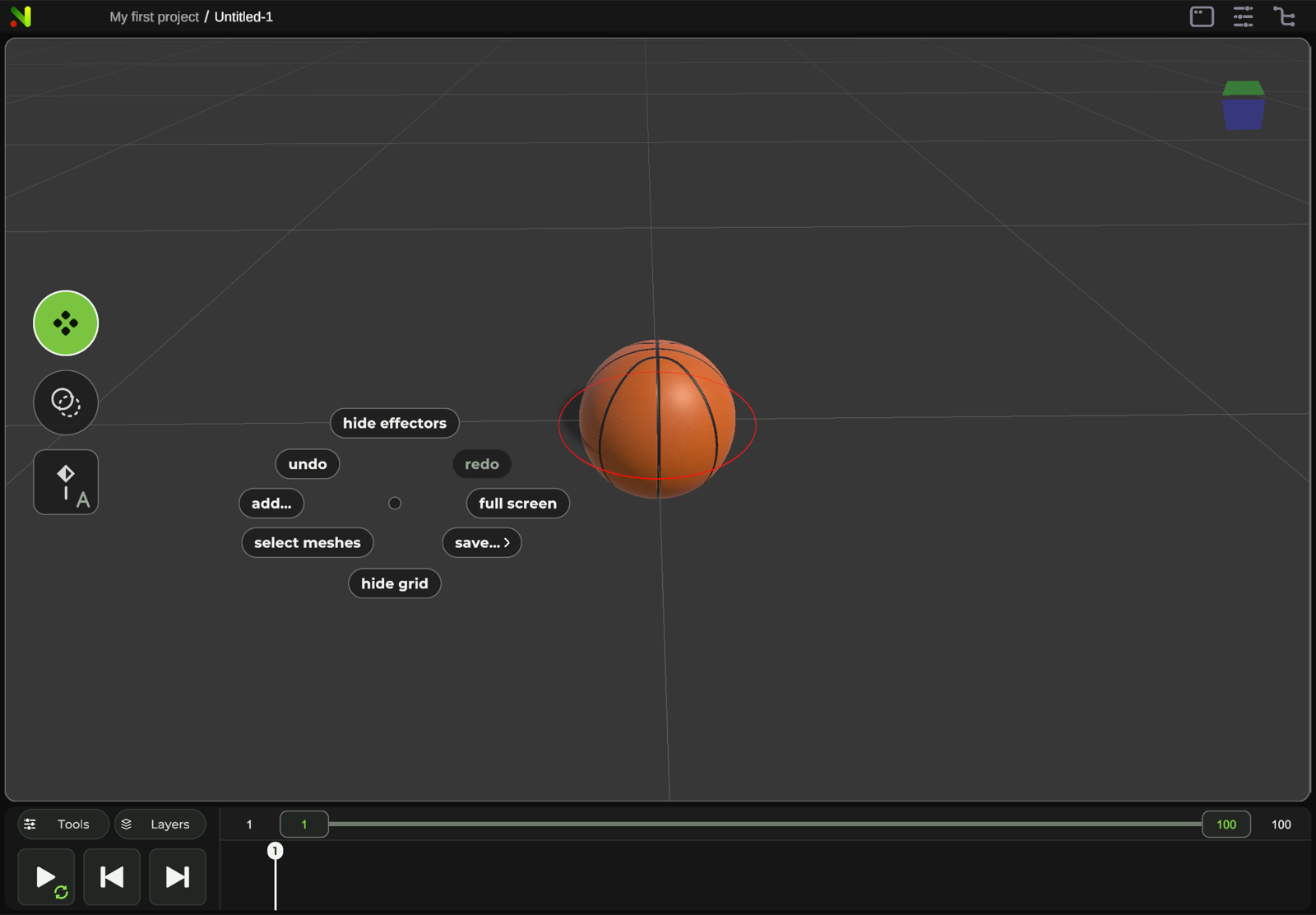
- Tap empty space so nothing is selected.
- Hold the pie key, touch the 3D view and choose hide effectors.
- To bring them back, open the pie again and choose show effectors.
- The setting belongs to one view. With the screen split in two, you can keep the handles in one view to work in, and hide them in the other to see the result.
- While handles are hidden in a view, tapping there selects nothing.
- During playback the gizmo hides by itself.
Faster ways to get a pose
- Pose from a photoNaomi reads the pose of a person in a picture and puts your character into it.
- Animation from videoTurn the movement of a person in a video into keys.
- Saved animationsPut a movement you saved earlier onto the character.
Troubleshooting
| What you see | Why, and what to do |
|---|---|
| Tapping the character selects nothing. | The handles are hidden in that view. Choose show effectors in the pie. |
| A handle on the arm will not go where I drag it. | That arm is in FK, where the handles are turned, not moved. Use rotate, or switch the arm to IK and move the hand. |
| I cannot find the hand handle I used before. | The arm was switched between FK and IK. Each mode shows its own handles. |
| The knee or elbow bends the wrong way. | Move the knee handle (or the elbow handle of an IK arm) to the side the joint should point to. |
| The leg is stretched straight and the foot lifts off its handle. | The foot handle is further away than the leg is long. Bring the hips closer or the foot back. |
| Part of the pose is lost when I play. | Only selected handles were keyed. Go back to the frame, select all the handles you posed and tap the keyframe key. |
| There is no Humanoid Control Rig card. | The card belongs to human characters and sits on the whole character, not on a single handle. Tap the ring at the feet. |