
Generate 3D models with AI
No model? Describe what you want or give a photo, and Naomi builds a 3D model for you.
Generate 3D makes a new 3D model from a picture or from a few words. The model is saved to your library like any other, and you can rig and animate it.
- An internet connection.
- To be signed in to iCloud on the device. Your credits are kept there.
- Credits. Each generation costs credits, which you buy in the app. Naomi shows the cost before you confirm. You can try the tool for free with the built-in example.
Open it
- On the main menu: Asset Factory, then Generate 3D.
- In a scene: the menu button, Asset Factory, then Generate 3D.
- In the Assets library: Generate 3D.
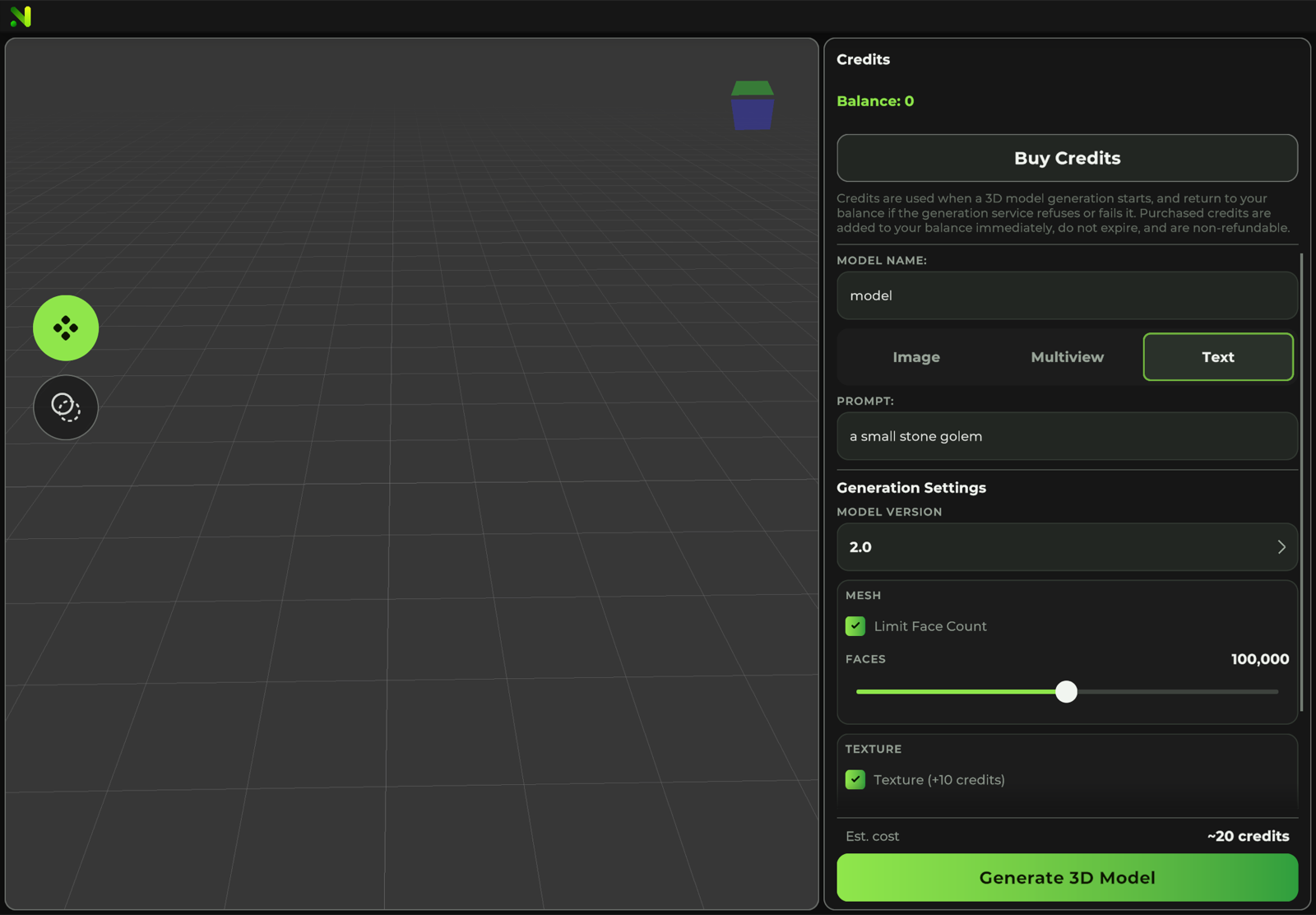
Try it for free
The first time you open the generator, the Image card already holds an example photo. While that photo is there, the cost line reads Free example.
- Tap Generate 3D Model.
- The example model appears and is saved to your library.
The example always gives the same model, whatever the settings. It shows you how the tool works from start to finish. To make a model of your own, replace the photo with yours.
Three ways to describe your model
| Tab | You give | Best for |
|---|---|---|
| Image | One picture (JPG or PNG, up to 20 MB), from Photos or Files. | Most things. The easiest way to get what you imagine. |
| Multiview | Up to four pictures of the same thing: Front, Left, Back, Right. Front and at least one more are needed. | When the back and sides matter. |
| Text | A short description, such as "A cute cartoon dog". | Quick ideas when you have no picture. |
- Use a picture without a background, or with a plain, single-colour one. Busy backgrounds give much worse models.
- Show the whole object, clearly lit, with nothing in front of it.
- For a character you want to animate, pick a picture where it stands straight with its arms out to the sides.
Generate a model
- Type a name in Model Name:.
- Choose a tab and add your picture or text.
- Check the settings (below), or leave them as they are.
- Look at the cost line, then tap Generate 3D Model.
- Read the Credits Will Be Used message and confirm.
- Wait. Keep Naomi open and stay connected.
When the model is ready, it is saved to your library and shown in front of you.
Settings
| Setting | What it changes |
|---|---|
| Model Version | Which generator is used. Newer versions usually give better models. 2.1 (PRO) needs Naomi Pro. Smart Low-Poly makes a simple, light model that runs smoothly, and costs extra credits. |
| Limit Face Count, Faces | How detailed the shape is. More faces mean more detail, but a heavier model that can slow down your device. Leave the limit on unless you need the detail. |
| Texture | Whether the model gets colours and surface pictures. Without it the model is plain. |
| PBR Materials | Adds information about shininess and roughness, so the surface reacts to light more realistically. |
| Texture Quality | Standard or Detailed. Detailed is sharper, costs more and takes longer. |
After the model is ready
Under the result you can go straight on:
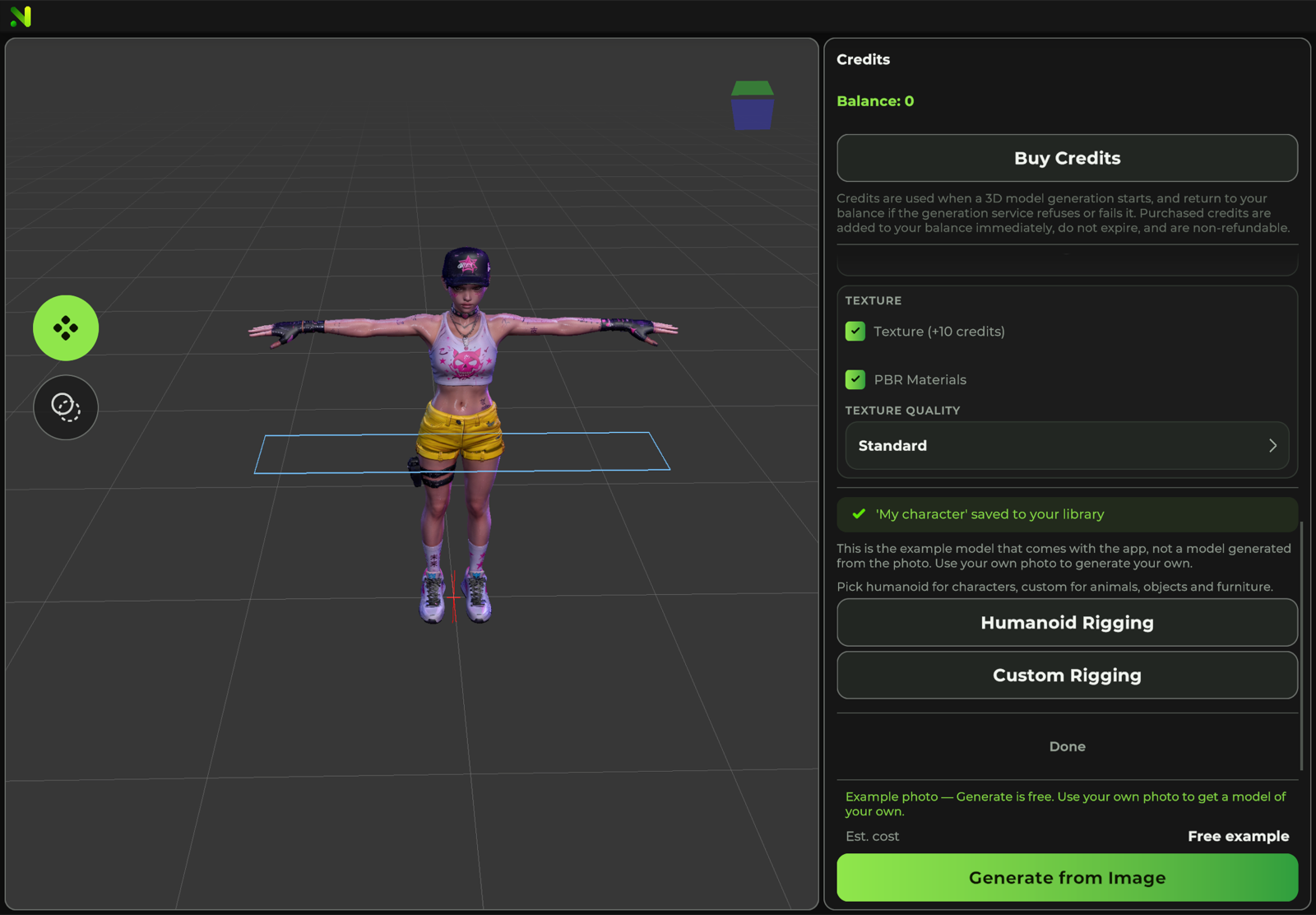
| Button | What it does |
|---|---|
| Humanoid Rigging | Takes the model into rigging for human-shaped characters. |
| Custom Rigging | Takes the model into rigging for animals, objects and furniture. See Custom Rigging. |
| Import to Scene | When ticked, the model is placed in the scene you came from. |
| Done | Closes the generator. |
See Rigging a character for what happens next.
Credits and what a model costs
The cost depends on your choices. The app always shows the exact number on the cost line before you confirm. As a guide:
| Choice | Credits |
|---|---|
| From text | 10 |
| From one image, or from several views | 20 |
| With Texture or PBR Materials | 10 more |
| With Detailed texture quality | 10 more |
| Smart Low-Poly | 20 more |
To buy credits, tap Buy Credits in the Credits section of the generator. Credits do not expire. See Free, Pro & credits.
When are credits used, and when do I get them back?
- Credits are taken when the generation starts.
- If the service refuses or fails the generation, the credits come back to your balance. The message tells you so.
- If you cancel, close the generator, or lose your connection after it has started, the credits are still used.
If something goes wrong
| Message | What it means |
|---|---|
| Check Your Input | Something is missing: no picture, an empty description, or a picture that is too large or too small. |
| Unsupported File | The picture is not a JPG or PNG. Choose another. |
| Generation Unsuccessful | It did not work this time. Try again, or try a different picture or description. |
| Content Not Allowed | The service did not accept the picture or the words. Try something different. |
| Generation Paused | Several requests in a row were refused. Wait the number of minutes shown. |
| Connection Issue, Service Busy | A network or service problem. Check your connection and try again a little later. |
| Insufficient Credits | You need more credits for these settings. Buy more, or choose cheaper settings. |
Every error message ends by telling you what happened to your credits.